
The Maintenance App
Built for the Factory Floor
Smart Maintenance Task Manager runs on iPhones, iPads, Android phones, and Android tablets. Technicians get their tasks, execute checklists, scan NFC tags or QR codes, and capture photos — all on a device they already know.
No laptop. No paper forms. No guesswork.
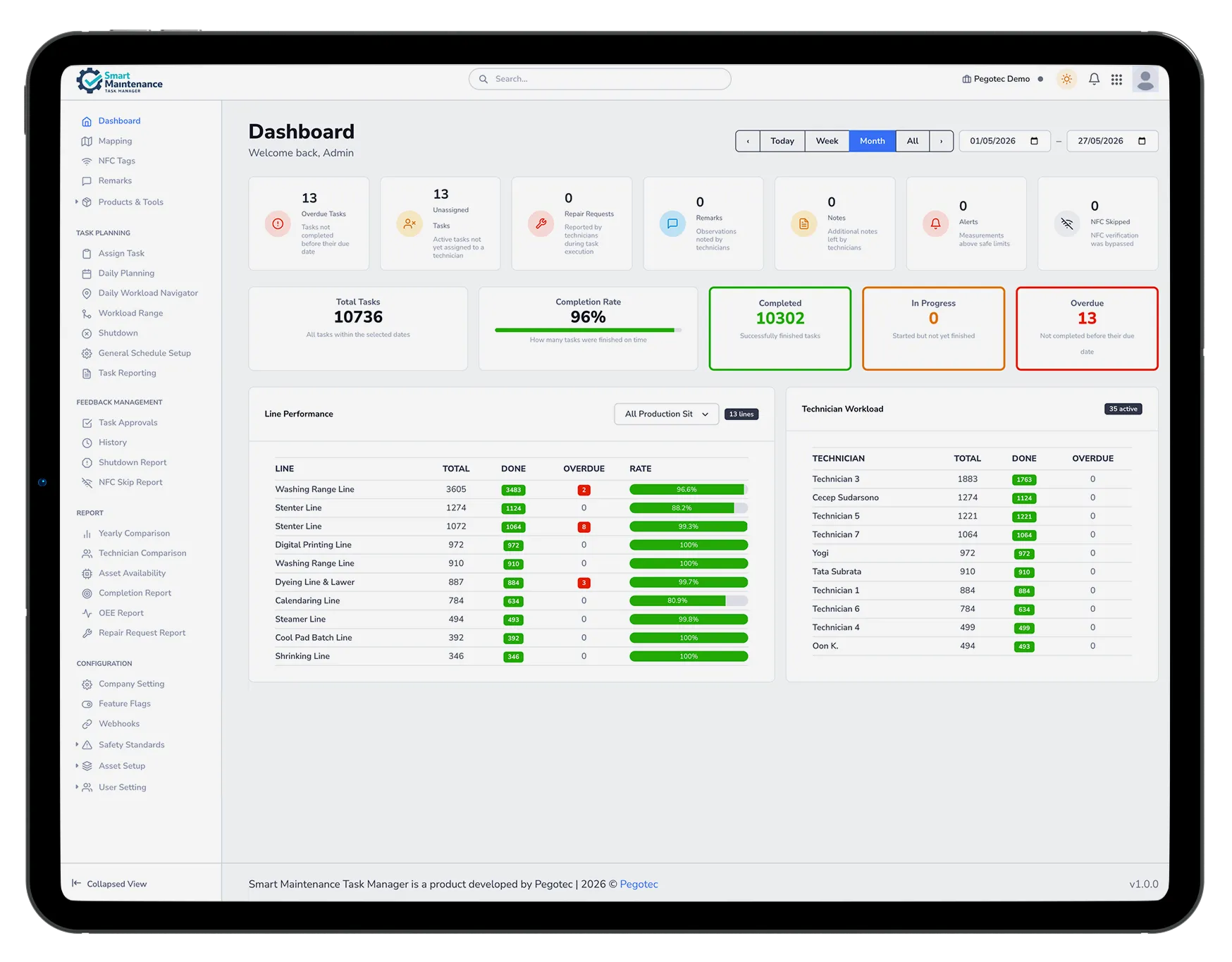
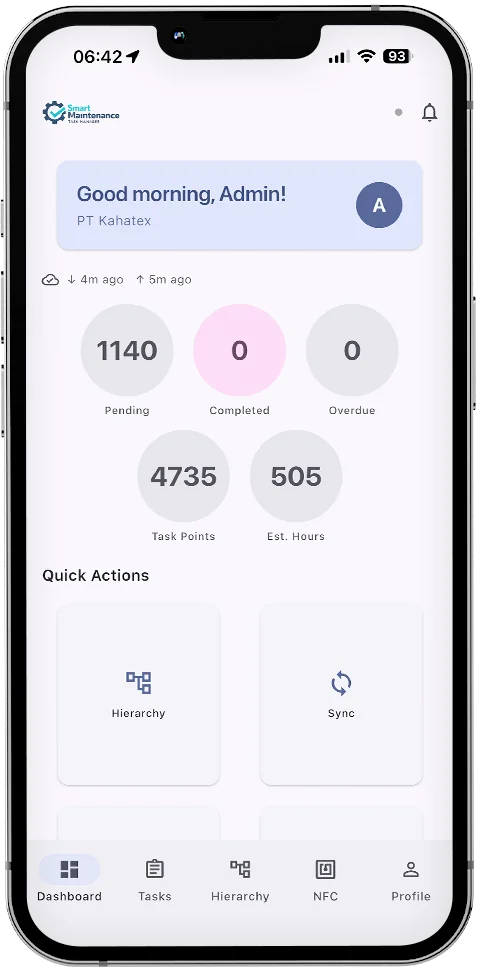
Two Roles. One App.
Smart Maintenance Task Manager has two distinct mobile user roles — Technician and Mapper. Each sees exactly what they need to do their job.
Maintenance Technician
Field technicians are responsible for executing maintenance tasks — lubrication, mechanical checks, electrical inspections, and repairs.
The app shows their daily task list, guides them through structured checklists, and lets them capture photo evidence and report issues without leaving the machine.
What technicians do in the app:
- View today's assigned maintenance tasks
- Follow step-by-step task checklists
- Record values and measurements
- Add the machine’s meter reading (running hours, distance, cycles) to any task at that machine — optional, offline, synced like everything else
- Meter reading rounds appear in the task list like any other scheduled job — one counter, or a whole line’s worth walked in order — and each counter on the round needs an answer before it can be closed
- Capture before/after photos
- View PDF manuals and documents at the task point
- Acknowledge LOTO/safety procedures
- Receive push notifications for overdue tasks
- Mandatory photo evidence when required by task configuration
- NFC scanning — tap the phone against an NFC tag on the machine to instantly open its task list
- QR / barcode scanning — point the camera at any QR code or barcode label to identify the machine and open its tasks (same result as NFC, no NFC chip required)
- Submit repair requests
- Defer a repair to the next planned shutdown right from the field — non-urgent fixes on non-critical equipment join the tracked Deferred Maintenance Backlog instead of slipping
- See shutdown work in the task list — planned-shutdown items show up clearly tagged, alongside the normal queue, during a stop
- Report shutdowns or anomalies
- Sync completed tasks with real-time update
- View task instructions in your own language (multi-language instructions)
- Glove Mode — one-tap setting that scales all touch targets for gloved operation
Mapper / Setup Role
Mappers are responsible for setting up and maintaining the asset hierarchy — adding machines and their counters, creating task definitions, assigning NFC tags, and configuring the maintenance structure.
The mapper role is for supervisors, maintenance engineers, or site setup teams.
What mappers do in the app:
- Create and edit production lines, assets, sections
- Add and configure task points on machines
- Write and assign NFC tags to machine sections
- Create task definitions and checklists — including a service interval in running hours, kilometres or cycles on any machine with a counter
- Hand tasks — including counter-reading rounds — to technicians from the web portal, where scheduling and assignment live
- View task history and machine status
- Production Site-scoped access — mappers can be restricted to specific production sites
Mapping and Doing — Finally Separate
Building and maintaining the asset hierarchy is a different job from executing tasks, so we gave it its own home. Mappers get their own Mapping tab; technicians get a clean task list — no more hunting through menus for the right action.
Everything visible
Add, Edit, Delete, Move, reorder — right there on every card. No hidden long-press, no mode to toggle.
Task points, fully
Set each task point’s component type, measurement options, thresholds, photos, and NFC tag.
Bulk actions
Select several task points to verify or remove them at once.
Cleaner for technicians
The execution view is purely for getting work done — none of the authoring controls in the way.
Drill, configure, and tag — all from the Mapping tab
Drill from production site to line to asset to section to task point, open any point to set up its tasks and measurements, and write its NFC tag — all from the one Mapping tab. Meanwhile the technician’s Hierarchy view stays uncluttered: browse, scan, and do the work.
Inside the Smart Maintenance Task Manager App
Here's exactly what technicians and mappers see — no abstract illustrations, just the real product.
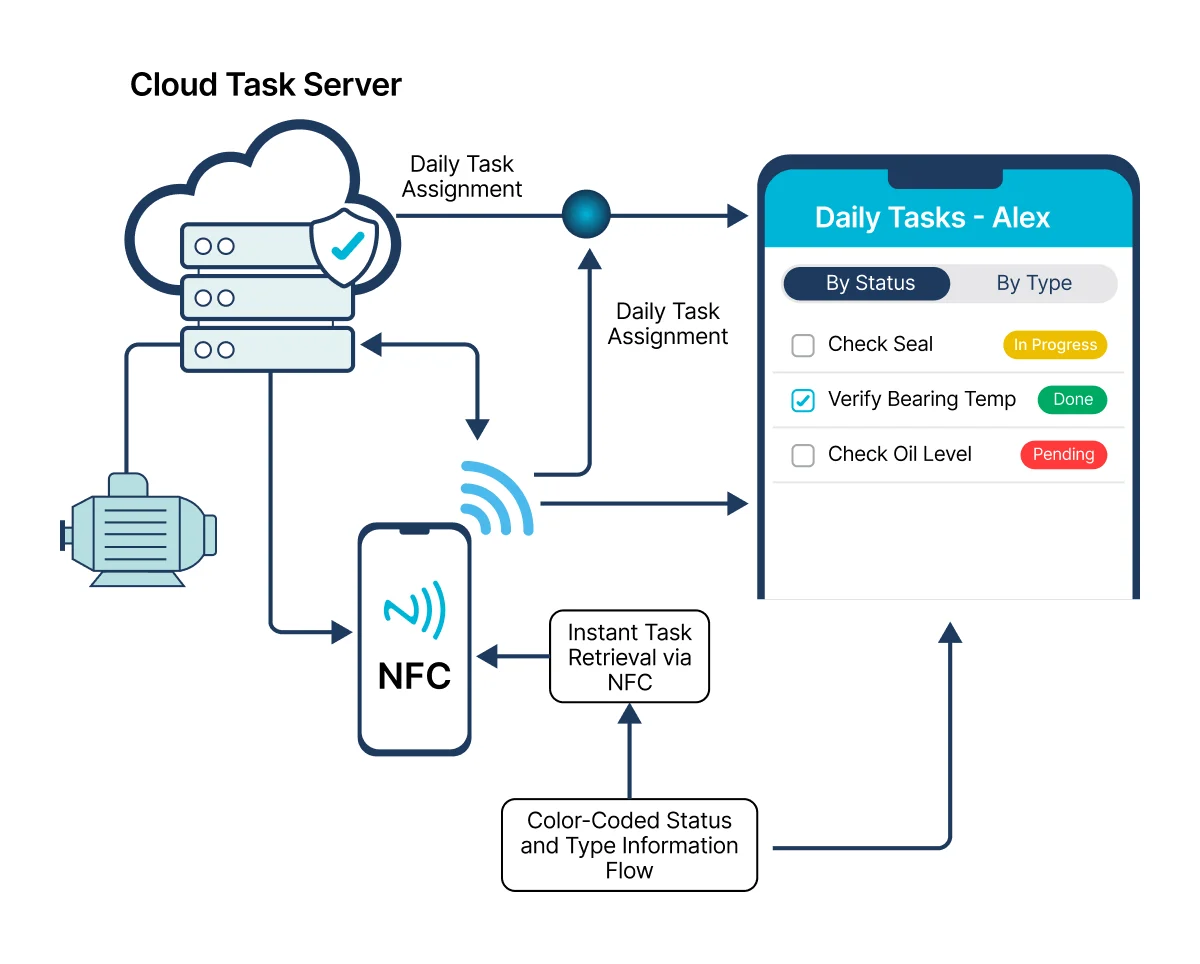
Task List
Every technician sees a clear list of their tasks for the day. Tasks are color-coded by type (lubrication, maintenance, electrical, production) and status (pending, in progress, completed, overdue).
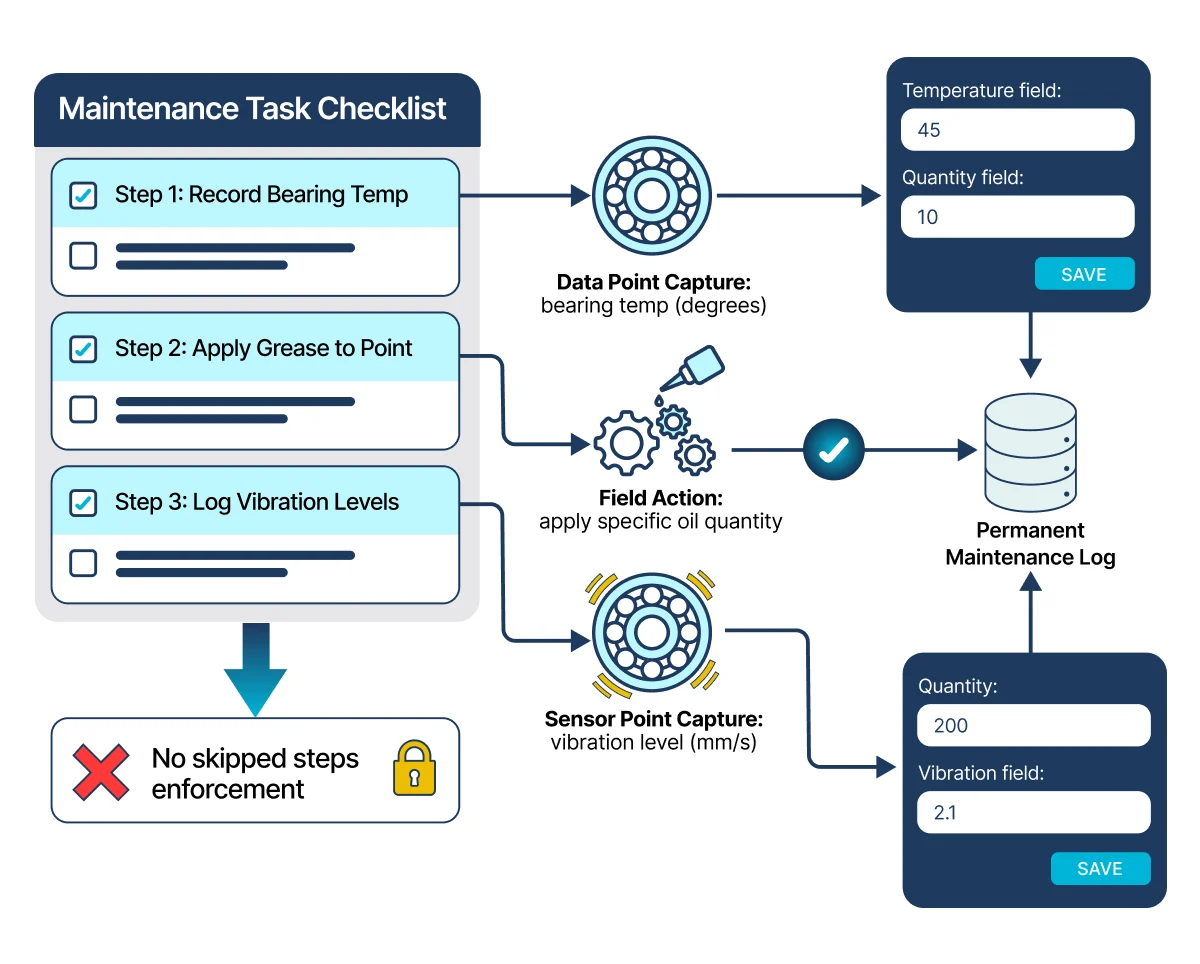
Task Execution
Each task has a structured checklist. Technicians work through each step, record values (e.g., temperature, vibration level, oil quantity), and mark each step complete. Where a machine carries a counter, its reading can be added in the same flow; where readings are the job itself, a reading round walks the technician from counter to counter in the planner’s order and closes only once every counter has an answer. No checklist step can be skipped.
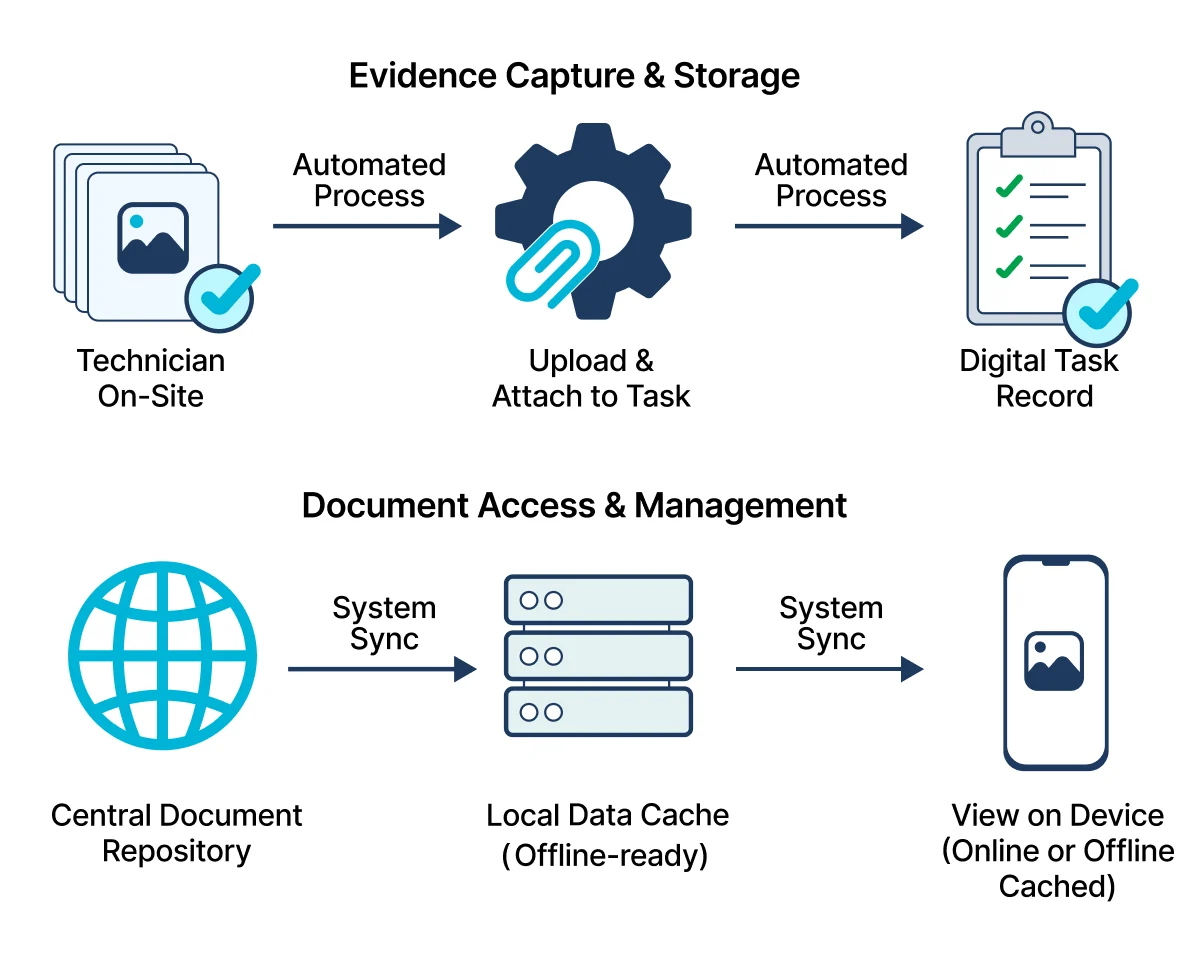
Photo Evidence & Documents
For every task, technicians can capture photos as evidence of work completed. Photos are automatically compressed, linked to the task and the technician who submitted them, and uploaded to the task record.
PDF manuals, work instructions, and safety data sheets can be attached to task points — technicians view them directly on their device while performing the task. Documents are cached for offline access.
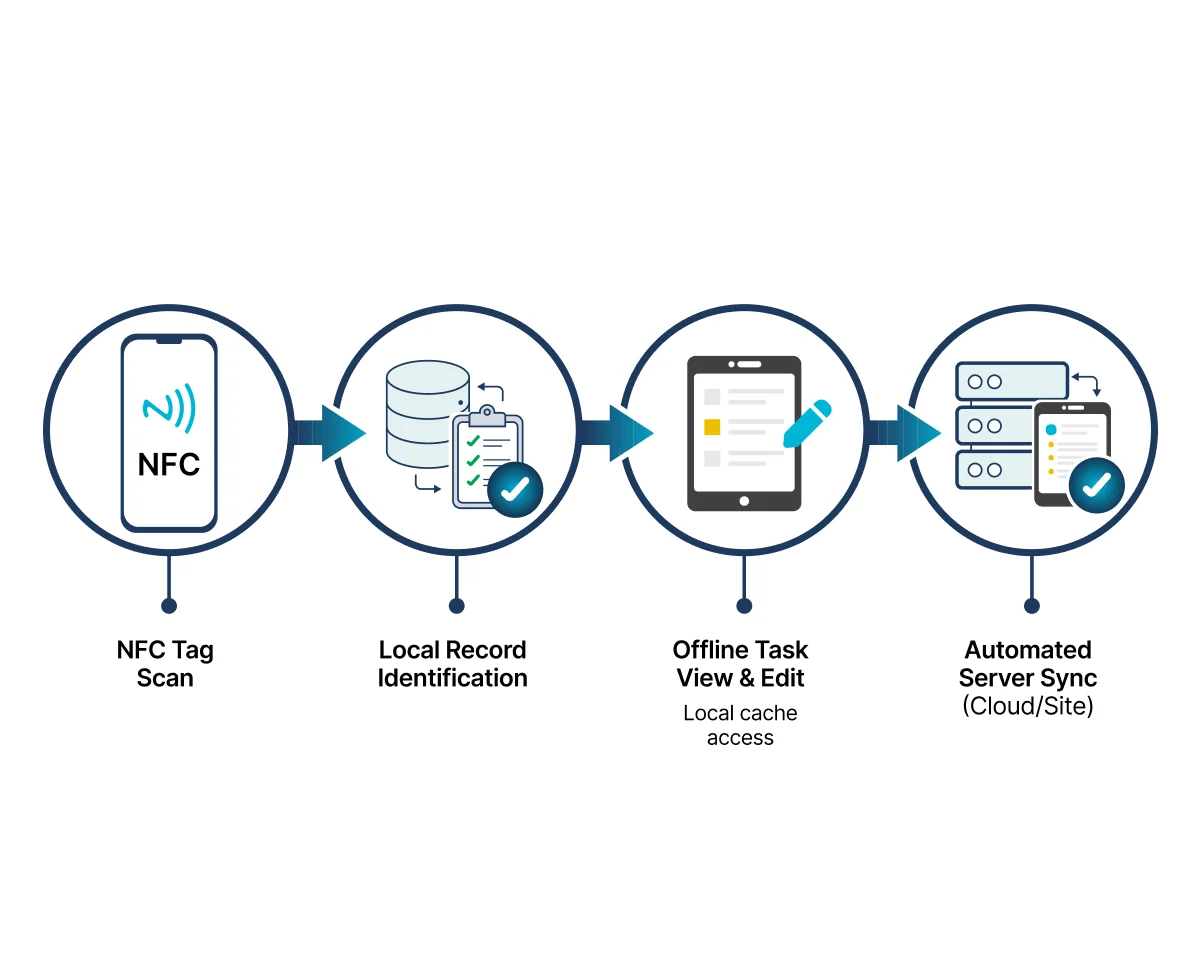
NFC Scanning
Tap a phone or tablet against an NFC tag on a machine — the app instantly opens that machine's task list. No typing, no searching. The technician is already looking at the right tasks.
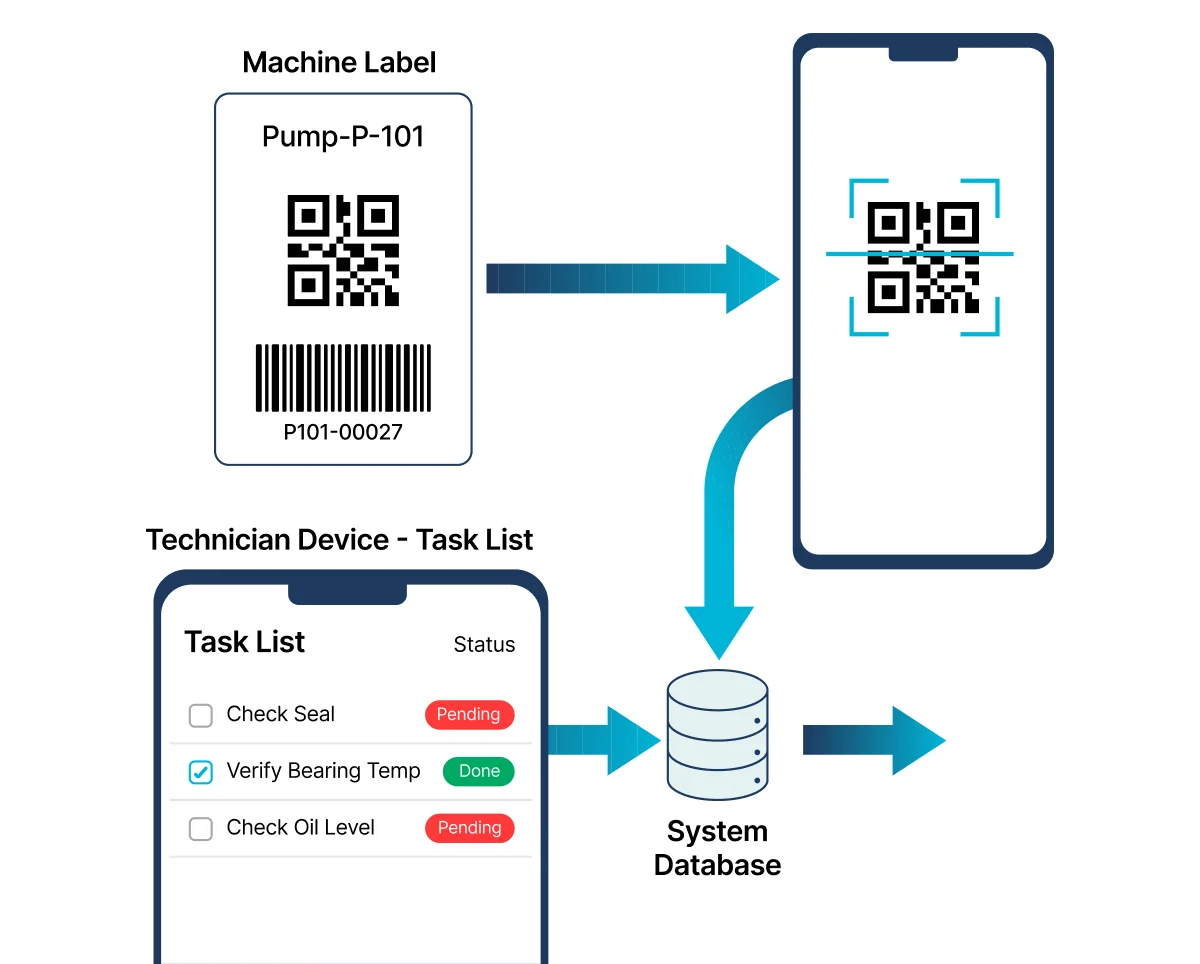
QR / Barcode Scanning
The built-in QR and barcode scanner uses the device camera to identify equipment. Point the camera at any QR code label or standard barcode on a machine — the app identifies the equipment and opens its task list immediately.
The result is identical to NFC scanning: the technician lands directly on the right task list without any typing or navigation. QR scanning works on every iOS and Android device — no NFC chip required.
When both NFC and QR scanning are enabled, the app shows a simple chooser so the technician can pick the method that suits the situation.
- Scans QR codes and standard barcodes (EAN, Code 128, and more)
- Identifies the machine and opens its task list — same flow as NFC
- Works on any iOS or Android device with a rear camera
- Torch toggle for low-light environments
- Can be enabled or disabled per company
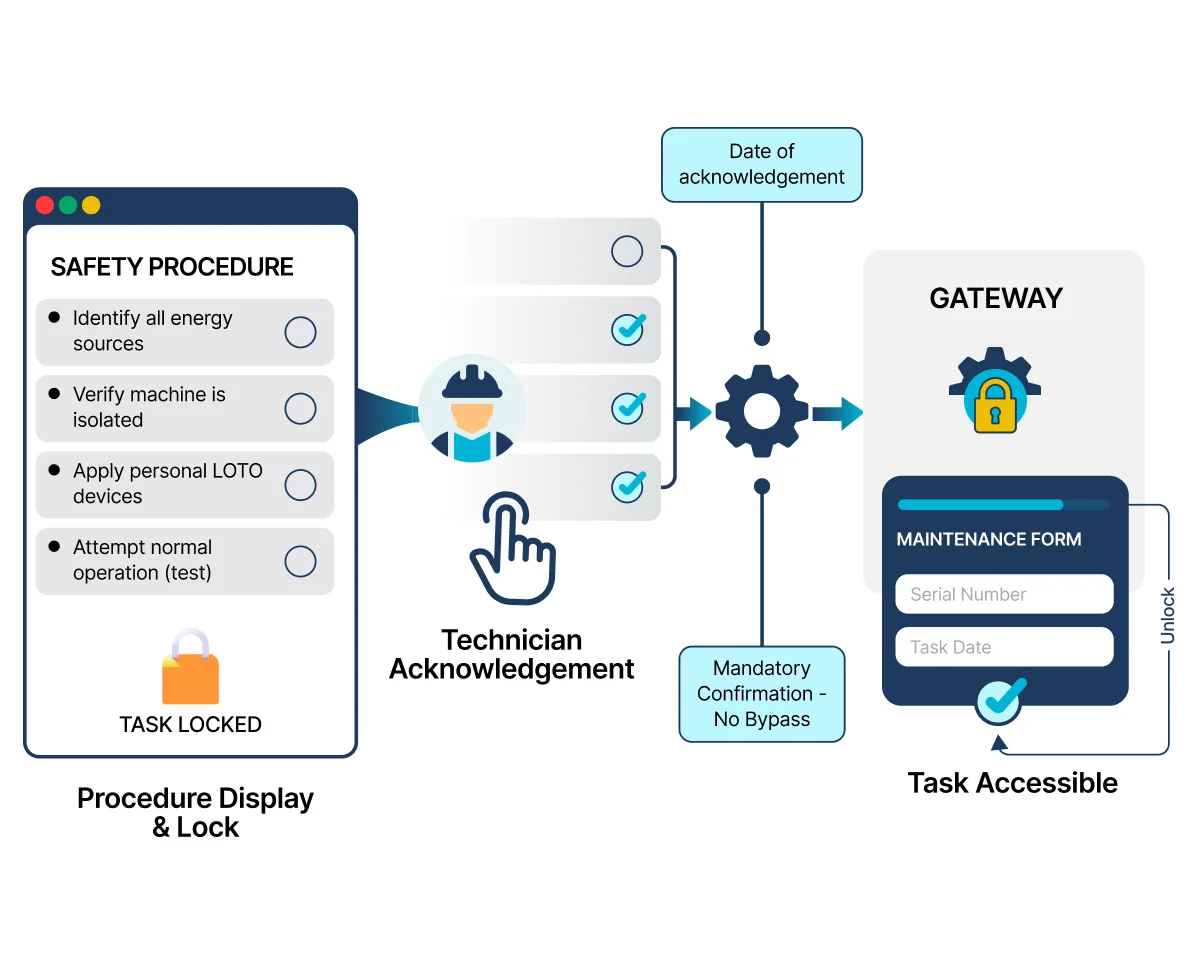
Safety / LOTO Gate
Before starting any task on a lockout-required machine, the app shows the complete safety procedure. The technician must acknowledge each safety step before the maintenance form becomes available. No bypass. No shortcut.
No Internet? No Problem.
The App Keeps Working.
Factory floors, basements, and remote facilities often have poor or no internet connectivity. Smart Maintenance Task Manager is built offline-first, meaning the app works completely without an internet connection.
Technicians can execute tasks, complete checklists, capture photos, and record meter readings even when fully offline. When the device reconnects, all data syncs automatically to the central system.
No lost data. No failed submissions. No frustrated technicians.
Offline sync uses incremental data transfer — only changes are synced, not the full database. This keeps data usage minimal even on slow connections.
Sync before shift
App downloads all tasks and machine data
Work fully offline
Execute tasks, take photos, submit reports without internet
Auto-sync on reconnect
All data uploads to server in background, manager sees updates in real-time
Build Your Asset Hierarchy in the Field, Online or Off
Walk the line with your phone, model equipment as you stand next to it, and let it sync when you're back in range. No dead zone stops the work.
Setting up a maintenance programme means getting your full asset hierarchy — every production site, line, asset, section, and task point — into the system, and that work happens on the plant floor, not at a desk. Smart Maintenance Task Manager lets mappers do all of it from the mobile app with no connection required.
Your field edits are kept when they sync. If someone changed the same node back at the office, the difference is flagged for review — so nothing is lost quietly.
Create the full hierarchy
Sites, lines, assets, sections, and task points — with component types, measurement options, and reference photos.
Edit, delete, reorder, and move
Re-parent an asset to the right line, change the order, fix a name — all offline.
Tag as you go
Write an NFC tag or print a QR the moment you create a task point; the registration syncs later.
Work in bulk
Select several task points to verify or remove them at once.
Everything you change shows up immediately on your device and uploads automatically the next time you have a connection — in the right order, with no duplicates, even if you mapped across several sessions or several phones.
Works on Any Phone or Tablet Your Team Already Has
No special hardware required. Smart Maintenance Task Manager works on the iOS and Android devices your team already uses.
iPhone
iOS 15.0+ (iPhone 6S and newer)
iPad
iPadOS 15.0+, optimized tablet layout
Android Phone
Android 7.0+ (API level 24+)
Android Tablet
Android 7.0+, full tablet support
The tablet layout is optimized for larger screens — showing more task details and hierarchy information at once, ideal for supervisors and mappers.
Two Ways to Identify Equipment. One Result.
Smart Maintenance Task Manager gives technicians two methods to instantly open a machine's task list — NFC tap and QR / barcode camera scan. Both work offline. Both navigate to the same task list. Choose the method that fits your facility.
NFC — Tap & Go
Place an NFC sticker on a machine. The technician holds their phone or tablet near the tag — no alignment, no camera, no line-of-sight needed. The app opens that machine's task list in under a second.
- Works through gloves, dirt, and grease
- Tags written directly from the mobile app
- Under $1 per tag, weatherproof, permanent
- Supports machines, sections, and assets
QR / Barcode — Camera Scan
Print a QR code label and stick it on a machine. The technician opens the scanner in the app and points the camera at the code — the app identifies the machine and opens its tasks instantly. Existing barcodes on equipment also work.
- Works on any iOS or Android device — no NFC chip required
- Scans QR codes and standard barcodes (EAN, Code 128, and more)
- Torch toggle for low-light environments
- Can be enabled or disabled per company
Instant Access
No typing, no searching — open any machine's task list in under a second, with either method
Presence Proof
Confirms the technician is physically at the correct machine before work starts
Error Reduction
Eliminates wrong-machine mistakes — the technician scans the physical label, not a dropdown list
How NFC Tagging Works
A one-time, five-step setup per machine. Once a tag is written, any technician taps their phone against it to open that machine's tasks instantly.
Attach an NFC sticker to the machine
Stick a standard NFC tag (under $1, weatherproof) anywhere on the machine — typically on the control panel or main housing. No drilling, no adhesives beyond the tag's own back.
Open the mobile app and locate the machine
In Smart Maintenance Task Manager on iOS or Android, navigate to the machine in your asset hierarchy (Department → Line → Asset → Section).
Tap "Write NFC Tag"
On the machine's detail screen, tap the Write NFC Tag action. The app prepares to encode the machine's identifier onto a tag.
Hold the phone against the NFC sticker
Bring the phone within 2–3 cm of the tag. The app writes the machine's identifier in under one second. No external hardware or separate NFC writer required.
Verify by tapping the tag again
Tap the phone against the just-written tag. The machine's task list opens immediately. The tag is now permanent — any technician with the app can use it.
When a Tag Can't Be Scanned, Nothing Slips Through
If a technician can't scan an NFC tag — a damaged sticker, an unreachable machine, a missing label — they log a skip with a reason instead of silently moving on. Supervisors review and accept (or decline) each skip, so presence proof is never quietly lost.
NFC skips are reviewable. Safety / LOTO acknowledgments — described below in the Safety section — have no bypass and no shortcut. The two workflows are deliberately different: presence proof is recoverable; safety enforcement is not.
What a skip captures
- Reason (damaged tag / unreachable / missing / other)
- Free-text note + optional photo
- Timestamp + technician identity
- Supervisor accept / decline decision
- Full skip history in the NFC Skip Report
Know Your Tags Work Before You Walk Away
NFC should be the fast path to a task, not a guessing game. The mobile app now includes an NFC Tester in Settings, open to everyone. Tap Scan a tag and it tells you exactly what it sees — the tag type, whether it holds readable data, and whether it’s registered to a task point on your device.
A blank tag is clearly called out — new tags have to be written before they can be scanned — so there’s no confusion. And a one-tap write-and-read self-test proves the full round-trip on a spare tag.
When a scan “just won’t work”, the tester tells you whether it’s the phone, the tag, or the setup — in seconds, on the spot.
Scan a tag, see everything
Tag type, whether it holds readable data, its UID, and whether it’s registered to a task point on your device.
Blank tags, flagged
A new, unwritten tag is called out clearly — write it first, then it’s ready to scan.
Write-and-read self-test
One tap writes a test value to a spare tag and reads it back — proof the full round-trip works.
Open to everyone
It lives in Settings and needs no special role — any technician can check a tag on the spot.
Built-in Glove Mode — Designed for the Factory Floor
Factory technicians wear work gloves. Most mobile apps are not designed for that. Smart Maintenance Task Manager includes a dedicated Glove Mode — a one-tap setting in the app that scales every interactive element for gloved operation across all 30+ screens.
When Glove Mode is enabled, the entire interface adapts: touch targets grow from 48dp to 60–72dp, checkboxes enlarge, form fields expand, the navigation rail widens, and haptic feedback fires on every tap so technicians can feel their input through thick gloves. The preference is remembered across restarts.
- Glove Mode toggle in Settings → Accessibility — no restart required
- Touch targets 60–72dp in Glove Mode (48dp in Normal) — exceeds WCAG 2.2 AAA
- Checkboxes and switches scale from 24dp to 40–44dp
- Form fields expand; dropdown rows 56dp tall for gloved selection
- Navigation rail: 72 → 96dp wide, icons 24 → 30dp
- Haptic feedback on every button press, checkbox toggle, and submit action
- Scale factor adjusts by device: phone 1.35×, small tablet 1.4×, large rugged tablet 1.45×
- Meets WCAG 2.2 (AAA), ISO 9241, and OSHA 1910.138 hand protection requirements
Design Standards Followed
| Material Design 3 | 48×48dp min, 8dp spacing |
| WCAG 2.2 (AAA) | 44×44px min touch targets |
| Apple HIG | 44×44pt minimum |
| ISO 9241 | Human-system interaction ergonomics |
| ISO 9355 | Ergonomic requirements for displays and control actuators |
| OSHA 1910.138 | Hand protection — UI accommodates gloved workers |
Secure by Design — on Every Device
Maintenance data is sensitive. Smart Maintenance Task Manager is built with layered security that protects access, credentials, and data integrity — without slowing technicians down.
Encrypted, Verified Connection
Sign-in, sync and photo uploads travel over an encrypted connection, and the app first confirms it is talking to the genuine Smart Maintenance server (certificate pinning) — so a rogue Wi-Fi hotspot can't pose as the server to read or alter your maintenance data. Live updates arrive over an encrypted connection too.
Protected Credentials & Instant Revocation
Login credentials and API tokens are held in the operating system's secure storage — the iOS Keychain and Android EncryptedSharedPreferences — rather than ordinary app storage. Task data cached for offline use relies on the device's own operating-system encryption (iOS Data Protection, Android full-disk encryption), so enforced device passcodes matter. If a device is lost, its API token can be revoked immediately from the admin panel, cutting off further server access.
Timestamp Validation
Every task submission is validated against the server clock. If the device time differs by more than a configurable threshold (default: 5 minutes), the submission is flagged as having a clock drift. This prevents technicians from backdating completions by changing device time.
QR Code Setup & Token Auth
New devices are configured by scanning a QR code from the web dashboard — no manual URL or credential entry. Authentication uses secure API bearer tokens. No passwords are stored on the device. Tokens can be revoked instantly from the admin panel.
14 Languages for International Teams
Your technicians can use the app in their native language. Smart Maintenance Task Manager supports 14 languages across the platform — configurable per-user, not per-installation.
Language can be changed at any time from the app settings. All languages are fully translated — menus, checklists, and notifications. Task instructions can also be translated per language, so technicians see work instructions in their own language automatically. The translation system is flexible — additional languages can be added on request to match your workforce.
Frequently Asked Questions
Capabilities in Detail
Every capability in this area, with a one-line note on what it does.
See the App in a Live Demo
We'll walk you through the technician and mapper workflows on a real device — phone and tablet — during your 30-minute demo.